Digital signage, managed from anywhere

Upload media, schedule playlists, and control every screen, landscape or portrait, from one dashboard, on your desktop or your phone.
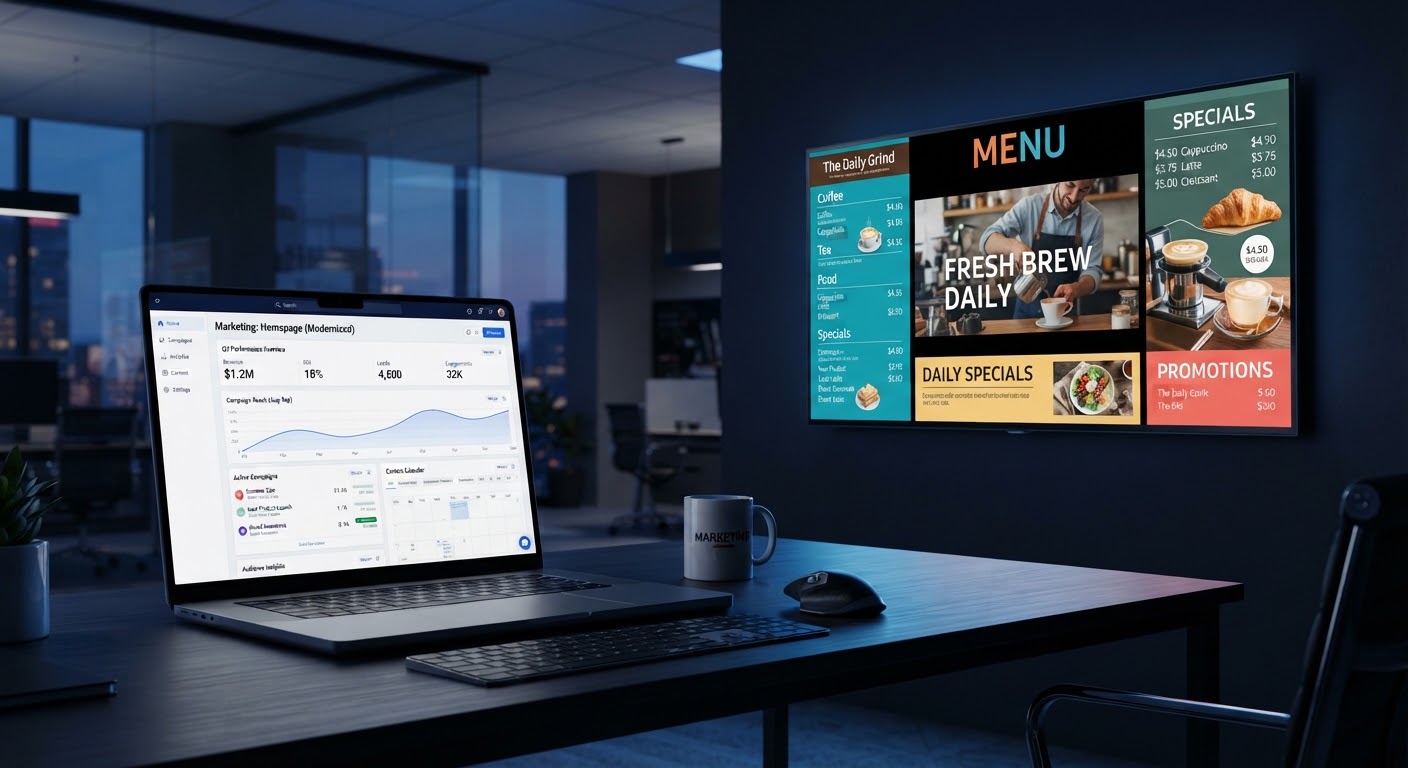
A signage dashboard on a laptop beside a wall display playing scheduled content

Live in minutes

Three simple steps to put content on your screens.

1

Sign up

Create your organization and open the dashboard. No credit card, no sales call.

2

Pair your screen

Install the player on any Android box or TV. It shows a 6-digit code. Type it into the dashboard and the screen is yours.

3

Your content plays

Assign a playlist, or a full dayparted schedule, and it starts playing within 30 seconds. Updates roll out to every paired screen automatically.

Everything you need to run your screens reliably

Remote management

Add screens, swap playlists, and rename devices from anywhere. Changes reach your screens on their next check-in.

How it works

  • The dashboard lists every screen in your org: name, status, and what’s currently assigned to it.
  • Rename a screen, reassign its playlist or schedule, or unpair it, all from a browser, no on-site visit needed.
  • Every screen has an activity log: pairing, assignment changes, orientation changes, and online/offline events.
  • Changes reach the device on its next check-in, roughly every 30 seconds.

Instant pairing

No per-device accounts or logins on the screen. One 6-digit code pairs a box in seconds.

How it works

  • Install the player and it shows a 6-digit code on screen straight away, no account needed on the device.
  • Enter the code in the dashboard’s "Claim a screen" flow along with a name, and it’s live under your org.
  • Codes are single-use and expire after 15 minutes, so an old code left on a screen can’t be reused.
  • The screen never holds your operator credentials, only an opaque device token issued at claim time.

Playlists and dayparted schedules

Order your media, set per-item durations, and reuse a playlist across screens. Layer on a schedule to rotate different playlists by day and time automatically.

How it works

  • Build a playlist: order your media, set how long each item plays, and optionally shuffle playback order.
  • Assign the same playlist to as many screens as you like, edits apply everywhere it’s used.
  • For time-based rotation, build a Schedule: a default playlist plus entries, each with its own days of the week and start/end time window.
  • The two-pane schedule editor makes overlapping windows obvious before you save.
  • Clone a playlist or schedule to start a variant without rebuilding it from scratch.

Portrait or landscape, done right

Screens and playlists both know their orientation, so a portrait menu board can't accidentally get assigned to a landscape lobby screen.

How it works

  • A screen’s orientation is set from its reported resolution when paired, and can be changed anytime in Settings.
  • Every playlist is explicitly Landscape or Portrait from the moment it’s created.
  • Assigning a mismatched playlist warns you first: the screen keeps its own orientation, so mismatched content plays with black bars unless you accept that.
  • Changing a screen’s orientation while it has an active assignment prompts for confirmation and clears the mismatched content automatically.

Proof-of-play reporting

Every play is logged on the device and synced back. Pull a per-screen report or export it to CSV for advertisers and compliance.

How it works

  • The player logs every item it actually plays, media, start time, and duration, directly on the device.
  • Logged plays sync back to the dashboard on the device’s regular check-in, so nothing’s lost if a screen goes offline first.
  • Pull a per-screen playback summary in the dashboard, or export the full log as CSV.
  • Useful for advertiser billing verification, contractual proof-of-play, or internal compliance audits.

Show more than media

Images and video, plus live web pages, dashboards, and menus, right in the playlist alongside your other content.

How it works

  • Add a "Web page" item to any playlist with just a name and an HTTPS URL.
  • It plays back like any other item, on its own duration timer, right alongside your images and video.
  • Great for live dashboards, digital menu boards, or embedded pages that update themselves in the background.
  • No separate app or player needed, it renders inside the same signage player.

Offline-first playback

Content is cached on the device. Internet down? Your screens keep playing without missing a beat.

How it works

  • Every media file is downloaded and cached on-device, and verified by checksum before it’s allowed to play.
  • If the network drops, the player keeps looping its last-known playlist or schedule with zero manual intervention.
  • A reboot or power cycle resumes playback automatically, no one needs to touch the box.
  • Once connectivity returns, the player re-syncs and catches up automatically on its next check-in.

Runs on affordable hardware

Built for low-cost Android boxes and TVs (Android 7 and up): no proprietary players, no lock-in.

How it works

  • The player is a small native Android app, no proprietary box, dongle, or SDK required.
  • It targets Android 7.0 and up, and is built and tested against Android 11 signage boxes as the baseline.
  • A $30–$50 Android TV stick or box works just as well as expensive dedicated signage hardware.
  • Sideload the APK from the download page, no app store account or approval process to wait on.

Manage from your phone

The dashboard is fully responsive. Approve content and fix a screen from wherever you are.

How it works

  • The dashboard is a responsive web app, there’s nothing extra to install on your phone.
  • Every action, pairing a screen, editing a playlist, checking a report, works the same on a phone browser as on a desktop.
  • Useful for fixing a screen on-site: stand in front of it, open the dashboard, and reassign or troubleshoot right there.
New

Multi-zone layouts

Go beyond full-screen playlists. Split a screen into zones, a main area, a sidebar, a ticker, each playing its own content at the same time.

  • Independent playlists, schedules, and shuffle per zone
  • One zone carries audio, the rest stay muted
  • Presets for common splits, no pixel pushing
Explore features

Built like software should be

Offline-first by design

Screens survive network cuts and power cycles: playback resumes on boot, no touch needed.

API-first

Everything the dashboard does is a documented API. Explore the API docs →

Secure by default

Sign-in backed by Auth0. TLS everywhere. Screens hold a device token, never your credentials.

Put your first screen live today.